
Zero Knowledge Encryption
Zero Knowledge (ZK) encryption lets you store projects in the cloud while ensuring that only you can read them. All encryption and decryption happen entirely inside your browser — the server stores only ciphertext and never sees your password or your project data.
When to use this
- When you need cloud storage but cannot share project data with a third-party server
- When your organisation requires end-to-end encryption for client or sensitive-site projects
- When your Enterprise admin has enforced Cloud + Encryption as the required storage mode
- When you want to share an encrypted project with a colleague who knows the same password
How it works
- You set a password when saving the project.
- Your browser derives an encryption key from the password using a secure key derivation function (PBKDF2 / AES-256).
- All project data and images are encrypted before being sent to the server.
- When you or a colleague opens the project, the browser decrypts it locally using the same password.
The server stores only the encrypted blob — it cannot read your project data.
Saving a project with Zero Knowledge encryption
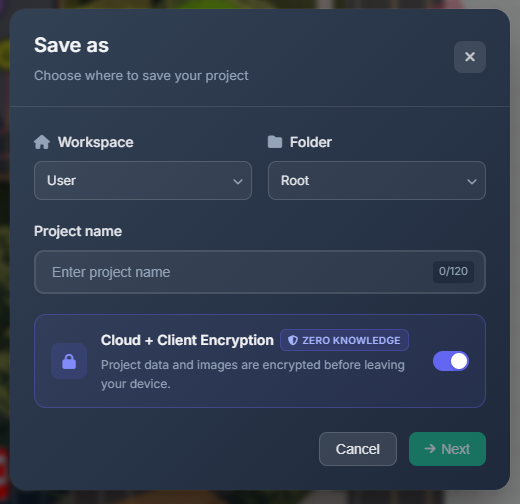
- Open Project → Save As (or create a new project).
- In the Storage Mode section, choose Cloud + Encryption (ZK).
- Enter a strong password (minimum 8 characters). The password strength indicator helps you choose a secure password.
- Confirm the password and click Save.
TIP
You can generate a cryptographically strong random key by clicking Generate key & download .key file. Store the .key file in a secure location — you will need it to open the project.
Opening an encrypted project
When you open a ZK-encrypted project, a password prompt appears:
- Enter the password used when the project was saved.
- The project decrypts locally and loads normally.
If the password is wrong, the project cannot be opened and an error is shown. There is no way to recover a project if the password is lost.
Company-wide encryption (Enterprise)
If your Enterprise admin has configured a company-wide encryption password, you will not be prompted to create your own. Instead:
- A Company Password field appears when saving or opening an encrypted project.
- Enter the company password provided by your administrator.
- The password is verified against the server-stored test ciphertext. If correct, the project is saved or opened.
INFO
The server validates only that the password produces the correct key — it never stores the password itself.
Changing the encryption password
WARNING
Changing the encryption password (either your own or the company-wide one) does not automatically re-encrypt existing projects. Projects saved with the old password remain encrypted with that key and are still accessible using the old password.
To migrate a project to the new password:
- Open the project (using the old password).
- Use Project → Save As and save it again with the new password selected.
Alternatively, export the project to a local .cctvp file and import it again after the new password is in effect.
Changing your own ZK password
Your ZK password is per-project — each project stores its own salt and test ciphertext. To change the password for a specific project, open it with the current password, then use Project → Save As and enter a new password.
Changing the company-wide password (Enterprise admins)
See Encryption Policy in Enterprise Settings for full instructions.
Security notes
| Property | Detail |
|---|---|
| Key derivation | PBKDF2-SHA256 with a random 128-bit salt |
| Encryption | AES-256-GCM |
| Password storage | Never stored or transmitted — derived key exists only in browser memory |
| Server knowledge | Server stores only the encrypted blob and a test ciphertext used to verify the password |
| Password recovery | Not possible — store your password securely |
Tips
- Use a password manager or a
.keyfile to store your ZK password - For team projects, agree on a shared password before saving the first ZK version
- If you need to share an encrypted project, share the password through a secure channel (not in the same message as the project link)
- Enterprise admins can enforce ZK mode for all projects via Encryption Policy in Enterprise Settings
- The auto-save feature works with ZK projects — the session key is kept in memory until you close the tab