
Single Sign-On (SSO)
Single Sign-On lets the members of an Enterprise organization sign in to the CCTV Design Tool with the identity provider your company already uses, instead of a separate password. The tool connects to Microsoft Entra ID, Okta, Google Workspace or any other OpenID Connect provider such as Auth0 or Keycloak. Once SSO is enabled, your team signs in by choosing Sign in with SSO on the login page and entering their work email. Administrators can also require SSO so that members can no longer sign in with a password or a Google account.
When to use this
- When your organization wants a single set of credentials across all business applications
- When you need to onboard new team members without creating and sending them passwords
- When your security policy requires that access is controlled centrally by your identity provider
- When you want to make sure that a person who leaves the company loses access as soon as their identity provider account is disabled
Before you start
- Your account must belong to an Enterprise organization. See Free / Premium / Enterprise Versions.
- You need the Manage SSO settings permission. The organization owner's ADMIN group has it by default. To let another group configure SSO, enable Manage SSO settings for that group in Manage Groups.
- You need administrator access to your identity provider to register the CCTV Design Tool as an application there.
Opening SSO settings
- Click on the User menu in the left toolbar.
- Select Profile from the dropdown menu.
- In the Company section of the User Profile sidebar, select Single Sign-On.
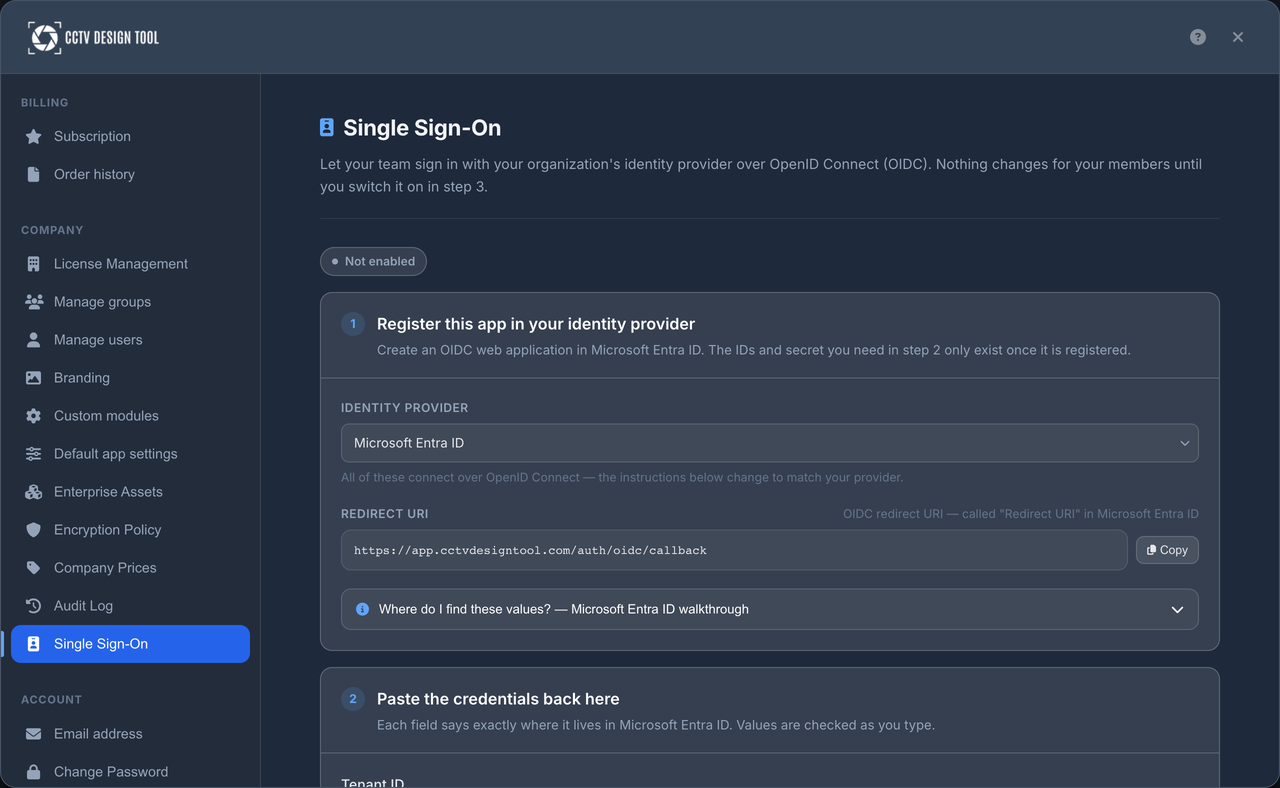
The page walks you through three steps. The status next to the title reads Not enabled, Active or Active · required. Nothing changes for your members until you switch SSO on in step 3.
Step 1: Register the app with your identity provider
- Choose your Identity provider from the dropdown: Microsoft Entra ID, Okta, Google Workspace or Other (OpenID Connect). The walkthrough and field hints on the page change to match the provider you pick.
- Click Copy next to the Redirect URI and register it in your identity provider as the redirect (callback) URI of a new OIDC web application. Your provider calls this field:
| Provider | Field name in the provider console |
|---|---|
| Microsoft Entra ID | Redirect URI (platform Web) |
| Okta | Sign-in redirect URIs |
| Google Workspace | Authorized redirect URIs |
| Other (OpenID Connect) | Authorized redirect URI |
- Expand Where do I find these values? for a step-by-step walkthrough of your provider's console. In short:
Microsoft Entra ID
- In the Azure portal go to Microsoft Entra ID > App registrations > New registration and keep Accounts in this organizational directory only.
- Under Redirect URI choose Web, paste the Redirect URI and register the app.
- The Overview tab shows the Application (client) ID and the Directory (tenant) ID.
- Under Certificates & secrets create a New client secret and copy its Value (not the Secret ID). It is shown only once.
- Under API permissions make sure
openid,profileandemailare granted.
Okta
- In the Okta Admin Console go to Applications > Create App Integration, choose OIDC – OpenID Connect and Web Application.
- Paste the Redirect URI into Sign-in redirect URIs and assign the app to the groups that should have access.
- The app's General tab shows the Client ID and Client secret.
- For the Issuer URL, enter your Okta org URL, for example
https://your-org.okta.com. This is the Org Authorization Server that every Okta org has, and it is the right choice for most teams. Only if you have set up a custom authorization server (Security > API > Authorization Servers) enter its Issuer URI instead; it looks likehttps://your-org.okta.com/oauth2/<server-name>.
Google Workspace
- In the Google Cloud console pick (or create) a project owned by your Workspace organization.
- Go to APIs & Services > OAuth consent screen and choose Internal, so only accounts on your Workspace domain can sign in.
- Go to Credentials > Create credentials > OAuth client ID, application type Web application, and paste the Redirect URI into Authorized redirect URIs.
- The confirmation dialog shows Your Client ID and Your Client Secret. Copy both now.
- Your Workspace domain is the domain your team's email addresses end in, for example
yourcompany.com.
Other OpenID Connect providers
- Create a confidential client (web application) and register the Redirect URI as an authorized redirect URI.
- Enable the authorization code flow and the
openid,profileandemailscopes. - Copy the client ID and client secret, and note the issuer URL: everything before
/.well-known/openid-configurationin your provider's discovery document. It must match theissuervalue published there exactly.
Step 2: Paste the credentials
Each field says exactly where the value lives in your provider's console, and values are checked as you type. Click Save configuration when you are done.
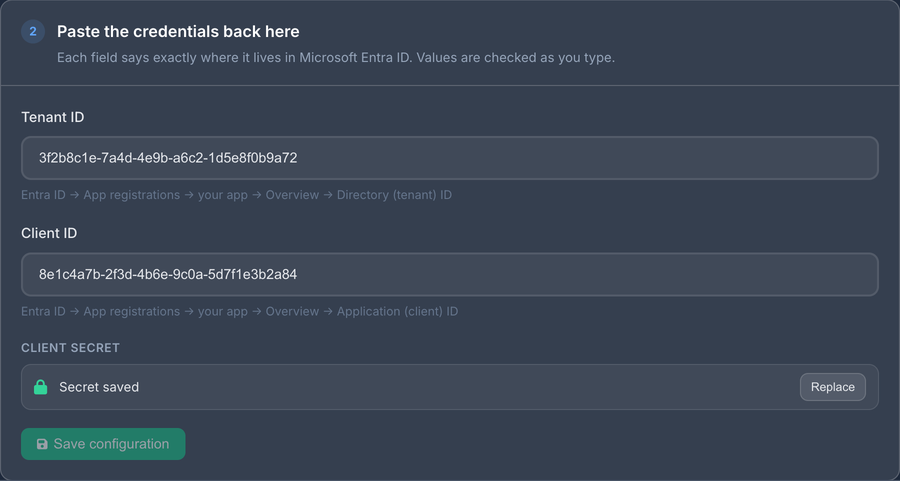
| Field | Microsoft Entra ID | Okta | Google Workspace | Other (OpenID Connect) |
|---|---|---|---|---|
| Provider-specific setting | Tenant ID: the Directory (tenant) ID, a 36-character GUID | Issuer URL: your Okta org URL, or a custom authorization server's Issuer URI | Workspace domain: a bare domain such as yourcompany.com | Issuer URL: the base URL of the discovery document |
| Client ID | Application (client) ID | Client ID | Client ID (ends in .apps.googleusercontent.com) | Client ID |
| Client secret | The secret's Value | Client secret | Client secret | Client secret |
INFO
The client secret is stored encrypted and is never shown again. Once saved, the field shows Secret saved with a Replace button for when you rotate it.
TIP
For Google Workspace there is no issuer URL to enter. Google publishes one fixed discovery document, and the Workspace domain is what ties sign-ins to your organization. Personal Gmail accounts are always rejected.
WARNING
Saving any change to the configuration clears the last test result and disables SSO until you test the configuration again and re-enable it. If SSO was required for everyone, that is lifted as well. Plan configuration changes, such as rotating an expired client secret, for a moment when a short interruption is acceptable.
Step 3: Test, then turn it on
Run the test
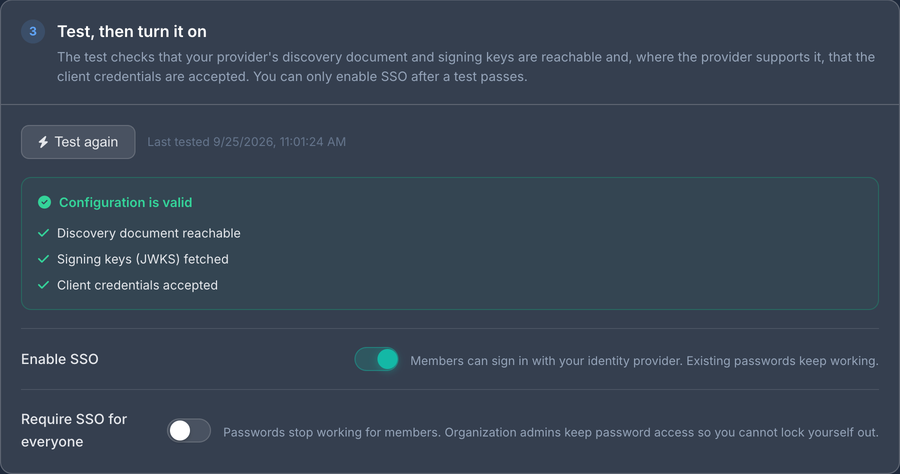
Click Run test. The result lists each check that ran with a pass or fail mark and, on failure, the reason:
- Discovery document reachable for the tenant, issuer URL or Google,
- Signing keys (JWKS) fetched,
- Client credentials accepted, for Microsoft Entra ID only.
For Okta, Google Workspace and other OpenID Connect providers the client secret cannot be checked without a real sign-in, so a passing test confirms only that the provider is reachable. The secret is verified by the first user who signs in.
If the test fails, fix the reported problem in step 2, save, and click Test again. Nothing changes for your members while you do. SSO cannot be enabled until a test passes.
Enable SSO
Once a test has passed, switch on Enable SSO. From now on:
- Members of your organization can sign in with Sign in with SSO on the login page.
- Password and Google sign-in continue to work. SSO is optional at this point.
- Any member who signs in with SSO for the first time has their identity linked to their existing account by email.
Switching Enable SSO off stops SSO sign-in immediately and also lifts Require SSO for everyone.
Require SSO for everyone
Switch on Require SSO for everyone to make the identity provider the only way in. The toggle is available only while SSO is enabled. When SSO is required:
- Members can sign in only with Sign in with SSO. Password and Google sign-in are refused with the message Your organization requires single sign-on.
- Invited users cannot register or set a password. They join the organization by signing in with SSO for the first time (see Adding users).
- Members of the ADMIN group stay exempt and can always sign in with their password. This guarantees that a broken identity provider configuration never locks the organization out of its own settings.
TIP
Enable SSO without requiring it first and ask a few members to try Sign in with SSO. Require it only after you have confirmed that sign-in works for regular members.
How your team signs in
- On the login page, click Sign in with SSO.
- Enter your work email address and click Continue with SSO.
- You are redirected to your organization's identity provider. Sign in there with the same account whose email you just entered.
- You are returned to the CCTV Design Tool, already signed in.
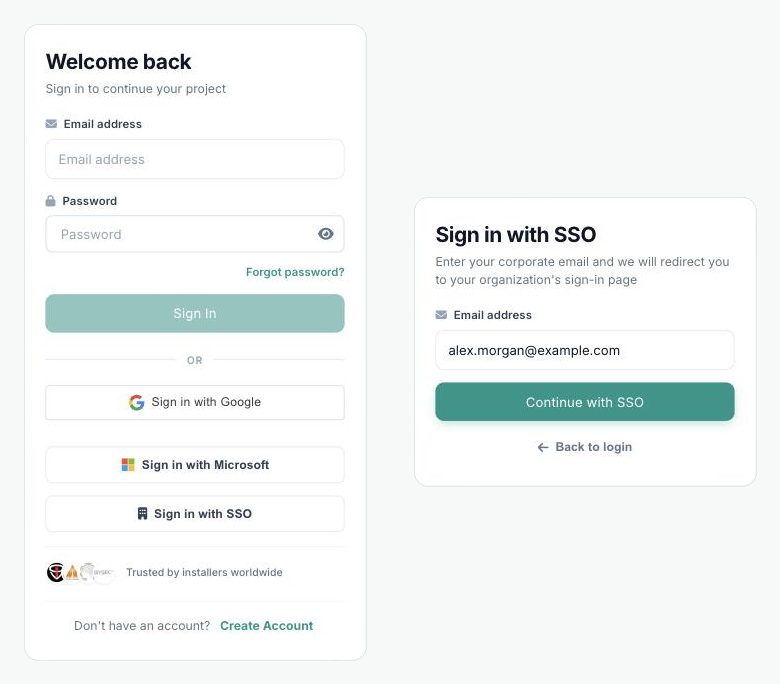
The organization is found from the email address: it must belong to a member of an organization with SSO enabled, or to a pending invitation from such an organization. If two-factor authentication is enabled on the account, the code is still requested after the identity provider has signed you in.
Adding users when SSO is on
Users are added in Manage Users as usual. What happens next depends on whether SSO is required for everyone.
SSO enabled, not required
- An email that already has a CCTV Design Tool account receives an invitation, which the person accepts in the app.
- A new email requires a temporary password, as it does without SSO. The person signs in with that password first and can switch to SSO afterwards.
SSO required for everyone
- A new email is invited without a password. The person simply chooses Sign in with SSO on the login page. Their first successful sign-in accepts the invitation, places them in the group chosen during the invite and assigns a free license if one is available.
- An email that already has an active account must first sign in with its password and accept the invitation in the app. Only then can that person use SSO.
INFO
Invitations expire. If a person has not signed in before the invitation expired, cancel it and invite them again from Manage Users.
Audit trail
Every change is recorded in the organization's audit log: saving the configuration, running a test with its result, and enabling, disabling or requiring SSO. Users who join through an SSO invitation appear as Invite Accepted.
Troubleshooting
| Message | What it means |
|---|---|
| Identity provider discovery failed (HTTP …) — check the tenant ID | The tenant ID or issuer URL is wrong, or the provider is unreachable. |
| The discovery document publishes a different issuer | For Okta or Other (OpenID Connect), enter the issuer URL exactly as the provider publishes it, including or excluding a trailing path. |
| Client credentials check failed | The client ID or client secret is wrong, or the secret has expired. Create a new secret in your identity provider and save it. |
| Test the configuration successfully before enabling SSO | Click Run test and fix the reported problem before switching on Enable SSO. |
| SSO is not available for this account | The email entered does not belong to a member or invitee of an organization with SSO enabled. Check that the person has been added in Manage Users. |
| You signed in to the identity provider with a different account than the email you entered | The account chosen at the identity provider does not match the email typed on the login page. Start again and pick the matching account. |
| You already have an account. Sign in with your password and accept the organization invitation first | The invitee already had an active account before the invitation. They must accept it in the app once, then SSO works. |
| Your invitation has expired | Invite the person again from Manage Users. |
| This Google account does not belong to a Workspace organization | The person signed in with a personal Google account. They must use their Workspace account. |
| This account belongs to a different organization than the one configured for SSO | The account chosen at the identity provider belongs to a different Entra tenant, Okta issuer or Workspace domain than the one saved in step 2. |
| Your organization requires single sign-on | SSO is required for everyone. Use Sign in with SSO instead of a password or Google. |
Tips
- Keep a note of when your client secret expires and rotate it before that date. An expired secret stops SSO for the whole organization.
- Turn on Require SSO for everyone only after regular members have confirmed that SSO sign-in works for them.
- Keep at least one administrator in the ADMIN group who knows their password. Administrators are the fallback when the identity provider is unavailable.
- When SSO is required for everyone, invite new colleagues by email only. They never need a password from you.
- Review the audit log after configuration changes to confirm who changed what and when.